
Quest 3 Dedicated Router Setup: 6 GHz PCVR Guide
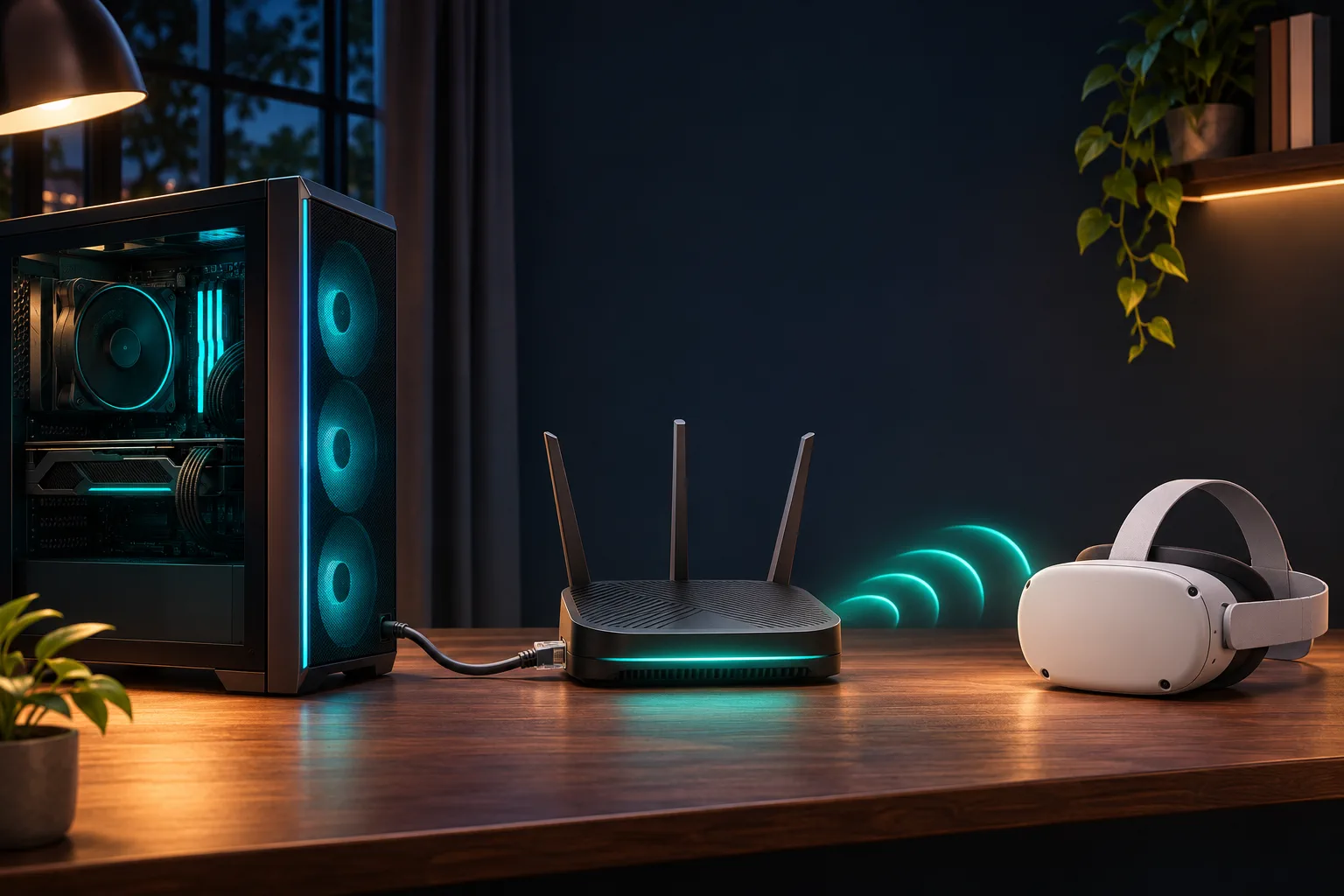
Setup essentials
- Wire the gaming PC to a LAN port
- Isolate Quest 3 on a separate 6 GHz SSID
- Start at 80 MHz; test 160 MHz only when stable
- Validate latency in the real play area
At a glance
- Router role
- PCVR network
- Gaming PC
- Wired Ethernet
- Headset band
- 6 GHz
- Goal
- Less contention
Should Quest 3 use a dedicated router for PCVR?
Use a dedicated router when you want Quest 3 wireless PCVR to have its own stable network instead of competing with every phone, television and smart-home client in the home. The advantage is isolation and easier diagnosis, not a proprietary VR protocol. A full Wi-Fi 6E router, a dedicated 5 GHz VR router and a USB VR bridge can all create a useful local path.
| Option | What it provides | Best fit |
|---|---|---|
| Full Wi-Fi 6E router | A separate 6 GHz network, wired LAN and normal home-router functions | Quest 3 plus the rest of a home; nearby play area and a wired gaming PC |
| Dedicated VR router or hotspot | A focused local network for the PC and headset, often on 5 GHz | A compact PCVR-only network when home Wi-Fi should stay untouched |
| USB VR bridge | A point-to-point Wi-Fi adapter attached directly to the gaming PC | A Windows PC setup where a compact dedicated bridge is preferred over another router |
| Existing home router | No additional hardware when the current 5 GHz or 6 GHz path is already clean | A nearby router with a wired PC and no contention or isolation problem |
A dedicated router can reduce Wi-Fi contention, but it cannot fix a weak GPU, a USB cable without data support, a VPN blocking local discovery or a play area outside the useful 6 GHz range.
How do you set up Quest 3 with a dedicated router?
1. Put the router in the play area
Place the router near the headset's normal play space, preferably elevated and in the open. Six GHz has less wall penetration than 5 GHz, so a strong nearby path matters more than a large coverage claim.
2. Wire the gaming PC
Connect the PC to a LAN port with Ethernet. Keep internet from the modem on the WAN port when the router is also serving the home. A wireless PC adds a second Wi-Fi hop and another source of jitter.
3. Create a separate 6 GHz SSID
Enable 6 GHz in the router app or browser interface and give it a distinct name such as the main SSID plus 6G. Leave older phones, televisions and smart-home devices on 2.4 or 5 GHz.
4. Join Quest 3 to that SSID
Open Quest Wi-Fi settings, connect the headset to the exact 6 GHz name and confirm it receives an address. A headset without a current Wi-Fi 6E-capable network configuration will not show the band.
5. Start one PCVR route
Launch Meta Quest Link, Virtual Desktop or Steam Link on the PC and headset. Confirm both devices appear on the same non-isolated network before changing codec, refresh rate or bitrate.
6. Run a sustained baseline test
Play the same game or scene for at least 10 minutes. Record latency, dropped frames and visual stability near the router. Then move one variable at a time: distance, channel width, bitrate or codec.
For the router's general WAN and mesh wiring, use the Minions router setup guide. For the buying decision rather than the configuration, compare best routers for Quest 3.
Which router settings matter for Quest 3 PCVR?
Prioritize a clean, separate channel over maximum advertised bandwidth. On a Wi-Fi 6E router, a distinct 6 GHz SSID and an 80 MHz or 160 MHz channel are the practical starting points. Quest 3 links at 160 MHz on Kevin, but stability and proximity decide whether the wider channel is useful.
| Setting | Practical choice | Why |
|---|---|---|
| SSID | Separate 6 GHz name | Makes it obvious which clients and bands are involved in PCVR |
| Band | 6 GHz for Quest 3 when nearby | More clean spectrum and less interference than crowded 5 GHz |
| Channel width | 80 MHz first; try 160 MHz if it stays stable | Wider channels increase link rate but also consume more spectrum |
| Channel | Auto first; fixed channel after testing | A fixed channel avoids an unnecessary move during diagnosis |
| Client isolation | Off for the PCVR network | PC and headset must be able to discover each other |
| Guest network | Do not use for quest 3 PCVR | Guest isolation can block the local stream and discovery traffic |
| Firmware | Current stable release | Radio behavior and compatibility can change between firmware versions |
Do not force 160 MHz when it causes instability, a fallback to a narrower channel or extra interference from neighboring networks. A stable 80 MHz link can deliver a better VR session than an unstable 160 MHz link.
How should you test Quest 3 PCVR latency and stability?
Test in the real play area with one repeatable scene instead of relying on a one-time speed result. The router should show both the wired PC and Quest 3, while the PCVR app should show a sustained connection rather than repeated discovery or stream resets.
- Keep the PC on Ethernet and verify the router client list shows it as wired
- Confirm Quest 3 is connected to the intended 6 GHz SSID, not a 5 GHz or guest network
- Use the same game, refresh rate, codec and bitrate for every comparison
- Watch the streaming app's performance overlay when available for latency, network delay and dropped frames
- Test for at least 10 minutes; short menu scenes can hide motion, heat and airtime problems
- Move or turn in the actual play area rather than testing beside the router
- Change one setting at a time and keep the best stable result
Do Virtual Desktop, Air Link and Steam Link need different settings?
They use the same local network principle, but each app exposes different performance controls. Fix the PC-to-router and router-to-headset path first, then tune the app. A different codec or bitrate cannot repair a missing 6 GHz SSID or an isolated guest network.
| PCVR route | First check | Then tune |
|---|---|---|
| Virtual Desktop | Wired PC, same router and headset on 6 GHz | Bitrate, codec, refresh rate and its performance overlay |
| Meta Air Link | Current Quest Link software, wired PC and non-isolated network | Air Link bitrate and headset-side streaming settings |
| Steam Link | PC and headset on the same local network with a wired PC | Steam Link streaming quality and host performance |
Choose the software route in Virtual Desktop vs Steam Link vs Air Link. If discovery or connection fails, use the dedicated Quest 3 Air Link troubleshooting guide.
How do you fix a Quest 3 dedicated-router connection?
Fix the local path in this order: headset on the correct SSID, PC on the router by Ethernet, no guest isolation, no VPN or firewall block, then the PCVR app. Internet speed and the 2.5GbE WAN port are not the PC-to-headset stream path, so changing broadband settings usually does not fix discovery or stutter.
- Forget and rejoin the exact 6 GHz SSID on Quest 3
- Confirm the PC and headset receive addresses from the same router
- Turn off guest isolation or client isolation for this network
- Set the Windows network profile to Private and allow the PCVR app through the firewall
- Disable VPN and virtual network adapters while testing discovery
- Restart the router, PC and headset after firmware or network changes
- Try 80 MHz and a lower bitrate when the wider channel or current stream does not stay stable
- Test Link Cable or another PCVR app to determine whether the fault is isolated to the network or application
For the wired fallback, use Quest 3 Link Cable troubleshooting. For comparison, read Quest 3 Link Cable vs wireless PCVR.
Is the Minions Kevin the right Quest 3 dedicated router?
The Minions Kevin is the right fit when the PC and headset are in or near one room and you also want a normal tri-band Wi-Fi 6E router. Its 6 GHz radio and wired LAN can create the standard one-wireless-hop PCVR topology. Its one gigabit LAN port is the main limitation for a large wired desk.
| Priority | Fit | Reason |
|---|---|---|
| Nearby Quest 3 PCVR | Strong fit | 6 GHz, a separate SSID and a wired PC |
| Whole-home Wi-Fi plus PCVR | Strong fit with placement | A normal router that can isolate the headset on 6 GHz |
| Small apartment or one play room | Strong fit | Single-unit price and short distance favor 6 GHz |
| Several wired devices | Limited fit | One gigabit LAN port; add a switch or choose a router with more ports |
| PCVR across several rooms | Weak fit alone | Six GHz range and obstruction make a second node or a different room a better first move |
Compare the Minions Kevin price, full specifications and router alternatives before buying. The 2.5GbE WAN is useful for multi-gig internet, but it does not raise the PC-to-headset stream speed.
Where do these dedicated-router recommendations come from?
Meta documents Quest 3 Wi-Fi 6E hardware and the Quest Link and Air Link setup route. Virtual Desktop publishes the same-network, wired-computer and 5 GHz AC/AX baseline used for the local-network checks.
The dedicated-hardware comparison uses the official PrismXR Puppis S1 product page and D-Link VR Air Bridge page. These sources describe different dedicated-link designs; they do not establish identical performance or compatibility in every home.
Router menus, supported channel widths and firmware behavior differ by model and region. Use the controls available on your exact router instead of copying a setting name from another product.
Key takeaways
- Dedicated means a separate local PCVR network, not a proprietary VR router brand
- Wire the gaming PC and connect Quest 3 to a nearby 6 GHz SSID
- Start with 80 MHz and test 160 MHz only when the link stays stable
- Keep guest or client isolation off for PC and headset discovery
- Test with one repeatable scene in the real play area for at least 10 minutes
- The 2.5GbE WAN helps internet traffic, not the local PC-to-headset stream
Next, compare Quest 3 Wi-Fi 6 vs 6E, check the Kevin gaming-router guide or choose the best router for Quest 3.
Frequently asked questions
Do you need a dedicated router for Quest 3 PCVR?
No. A clean existing 5 GHz or 6 GHz network can work when the PC is wired and the headset is nearby. A dedicated router helps when the main network is congested, the PCVR path is hard to diagnose or you want to isolate Quest 3 on its own SSID.
How do you set up a Quest 3 dedicated router?
Wire the gaming PC to the router by Ethernet, create a separate 6 GHz SSID, join Quest 3 to that network and launch one PCVR app. Confirm both devices are visible on the same non-isolated network, then test a sustained session before changing bitrate.
Should Quest 3 use 5 GHz or 6 GHz on a dedicated router?
Use 6 GHz when the router is compatible, nearby and unobstructed. Use 5 GHz when it provides the stronger stable connection or the 6 GHz network is unavailable. A clean 5 GHz link is better than a weak 6 GHz link.
What channel width should Quest 3 PCVR use?
Start with 80 MHz and test 160 MHz when both the router and Quest 3 support it. Wider channels can raise link rate, but they also use more spectrum and may be less stable when the router is far away or neighboring networks are active.
Does the gaming PC need internet for wireless PCVR?
The VR stream travels over the local network between the PC and headset, not through the internet. The PC and headset still need a working local network. Initial router configuration, game installation and updates can require an internet connection.
Can Quest 3 use the existing home router instead?
Yes when the existing router has a strong 5 GHz or 6 GHz path, the gaming PC is wired and guest isolation is disabled. A dedicated router is an isolation and troubleshooting tool, not a mandatory compatibility requirement.
Why can't Quest 3 find the PC on a dedicated router?
Check that both devices use the same network, guest or client isolation is off, the Windows network profile is Private and a VPN or firewall is not blocking discovery. The PC should be wired, and the PCVR app should be allowed through the firewall.
Is the Minions Kevin good for a dedicated Quest 3 setup?
Yes for a nearby play area where you also want a tri-band Wi-Fi 6E home router. Use its 6 GHz band, wire the gaming PC and verify sustained latency. Its one gigabit LAN port is a limitation for several wired devices or a very large desk.
Give Quest 3 a dedicated 6 GHz route
The Minions Kevin starts at $102.99 with free 3–5 day US shipping and 30-day returns.