
Quest 3 Air Link Not Working? 8 Fixes for PCVR
Fix the local connection in order: current Meta Quest Link software, supported gaming PC, same network, wired PC and a clean 5 GHz or 6 GHz path. Change Air Link settings only after those basics pass.
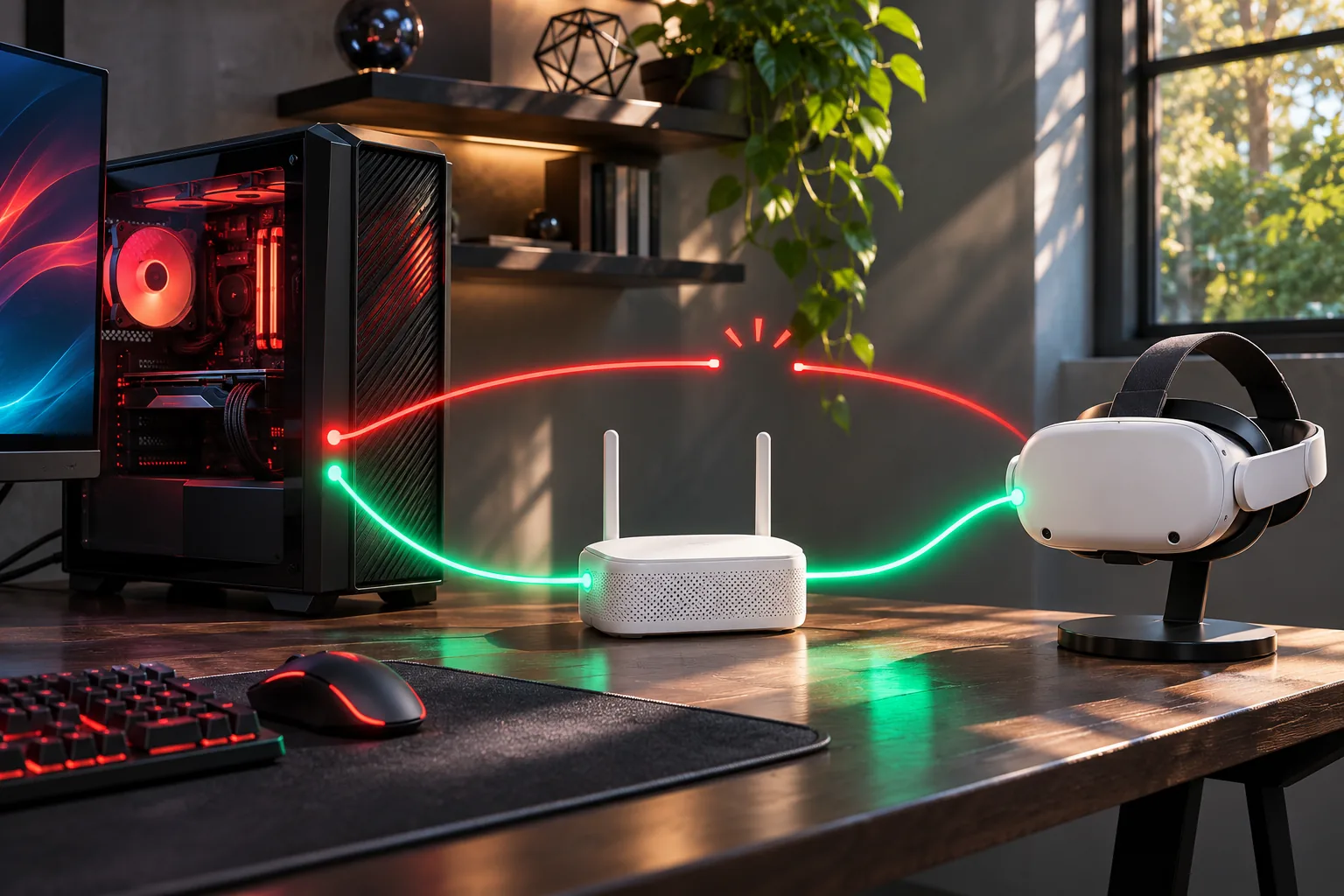
What should you check first when Air Link is not working?
Start with compatibility and the local path, not a new router. Air Link needs Meta's PC software, a supported computer and a local connection that lets Quest 3 discover that computer. A fast broadband plan does not fix a guest network, firewall or weak Wi-Fi link between the PC and headset.
| Symptom | First check | Next action |
|---|---|---|
| PC does not appear | Same non-isolated network | Check firewall, VPN and Quest Link service |
| Air Link greyed out | Supported PC and current software | Update Quest 3 and Meta Quest Link |
| Infinite loading | PC discovery and network | Restart both clients and retry near the router |
| Lag, stutter or judder | Wired PC and Wi-Fi path | Improve placement, channel or bitrate |
| No audio | Windows and Quest output devices | Select the correct device and restart the stream |
Why can't Quest 3 Air Link find the PC?
The PC is usually hidden because the devices are not on the same usable local network, Meta Quest Link is not running correctly, or Windows is blocking discovery. Guest Wi-Fi, client isolation, a VPN and some virtual adapters can make the headset and computer appear to be on separate networks even when both show a connection.
- Use the same router and the same non-guest SSID on the PC and Quest 3
- Start the current Meta Quest Link software on the PC before opening Air Link
- Temporarily disconnect VPN software and retest discovery
- Allow Quest Link through the active Windows firewall profile for private networks
- Restart the headset and the PC if the service has stopped responding
Why is Air Link greyed out on Quest 3?
A greyed-out Air Link option points to a compatibility, software or setup-state problem before it points to bitrate. Confirm that the computer meets Meta's current Quest Link requirements, update the Quest system software and Meta Quest Link PC app, then restart both devices and reopen the connection menu.
Do not install an old Air Link tutorial's PC software from a third-party download site. Use Meta's official Quest PC setup route so the headset and PC software come from the same current release.
Why is Air Link stuck on infinite loading or pairing?
Infinite loading means the two clients found one another but could not finish a stable handshake. Return both devices to the same network, restart Quest Link, and retry near the router before changing the game or graphics settings. If another PCVR app can connect on the same network, the problem is isolated to the Air Link software path.
- Close stray Quest Link or Air Link sessions before restarting
- Reconnect Quest 3 to the intended 5 GHz or 6 GHz SSID
- Move the headset into the room where you normally play
- Retry once with any nonessential VPN or proxy software disabled
- Test a wired Link Cable session to separate discovery from Wi-Fi
Why is Quest 3 Air Link laggy, blurry or shaking?
Air Link lag and judder usually come from the Wi-Fi link, bitrate or PC rendering load. Wire the gaming PC to the router, put the router near the play area, separate the headset from busy 2.4 GHz traffic and reduce bitrate or graphics demand until the session is stable. The internet plan is not the main limit in a local PCVR stream.
- Use 5 GHz or 6 GHz; 2.4 GHz is not the performance path
- Move closer to the router and avoid walls between PC-router and headset
- Test 5 GHz and 6 GHz separately instead of relying on band steering
- Lower bitrate, refresh rate, resolution or rendering load one variable at a time
- Check sustained latency and dropped frames instead of one speed number
If the headset tracking shakes even before a stream starts, Air Link settings cannot fix that tracking symptom. Test the headset interface without PCVR and follow Meta's current headset troubleshooting guidance.
Why is there no audio in Quest 3 Air Link?
Check the selected Windows playback device and the headset's audio route before reinstalling software. A PC can send a successful video stream while routing audio to speakers, a monitor or a disconnected headset device.
- Select the intended headset or VR audio device in Windows
- Turn up both the Windows output and Quest 3 volume
- Restart Quest Link and open a fresh Air Link session
- Test a non-VR audio source to confirm the headset speakers work
- If only one PCVR app loses audio, compare it with another app before changing router settings
What network setup makes Air Link reliable?
Keep the gaming PC on Ethernet and give Quest 3 a strong 5 GHz or 6 GHz signal from the same router. In a crowded network, use a dedicated or separate SSID, avoid guest-network isolation and keep downloads or large local transfers off the headset's band during play.
| Requirement | Why it matters |
|---|---|
| PC and headset on the same router | Local discovery and the PCVR stream use the LAN, not the internet |
| Gaming PC connected by Ethernet | Removes one wireless hop and leaves the headset as the main Wi-Fi client |
| 5 GHz or 6 GHz headset connection | Provides a practical local path for latency and bandwidth |
| No guest or client isolation | Isolation can block the devices from seeing each other |
| Short, clear router-to-headset path | Distance, walls and interference reduce stability |
Read the Quest 3 router setup guide for placement and the Quest 3 Wi-Fi 6 vs 6E comparison for the 5 GHz versus 6 GHz decision. Kevin can provide a local 6 GHz path, but no router or app guarantees the same result in every room.
When should you stop troubleshooting Air Link and switch apps?
Switch only after the same network and wired-PC basics pass. If a wired Link Cable session works and another wireless app such as Virtual Desktop or Steam Link connects reliably, Air Link's software path is the likely fault. If no PCVR app can find the computer, fix the network, PC or firewall first.
Compare the choices in Quest 3 Virtual Desktop vs Steam Link vs Air Link or the Quest 3 Link Cable vs wireless guide. If the wired fallback connects power but the PC still does not see the headset, use the Quest 3 Link Cable troubleshooting guide.
Where do these Air Link fixes come from?
Meta publishes the Quest Link and Air Link PC setup route and documents Quest 3 Wi-Fi 6E hardware. Virtual Desktop documents the same-network, wired-PC and 5 GHz router baseline used to explain the local network path. Steam Link documents wireless PCVR and a wired PC-to-router requirement used for the cross-app isolation test.
Menu names, supported operating systems and Air Link behavior can change by firmware and PC software release. Use Meta's current setup requirements for version-specific details.
Key takeaways
- Start with current Quest 3 and Meta Quest Link software
- Put the PC and headset on the same non-isolated network
- Wire the gaming PC to the router
- Use a nearby 5 GHz or 6 GHz connection
- Reduce bitrate after discovery works, not before
- Use another app or Link Cable to isolate an Air Link-specific fault
Frequently asked questions
Why is Quest 3 Air Link not working?
Check current Meta Quest Link and Quest software, a supported PC, the same non-isolated network, a wired PC and a nearby 5 GHz or 6 GHz Wi-Fi path. VPNs, firewall rules and guest-network isolation are common reasons the PC is not found.
Why is Air Link greyed out on Quest 3?
A greyed-out Air Link option usually points to a compatibility or software-state problem. Confirm the PC meets Meta's current requirements, update both clients, restart the devices and reopen Quest Link.
Why is Air Link stuck on infinite loading?
The two clients found each other but could not finish a stable handshake. Restart Quest Link, reconnect to the same non-isolated network, retry near the router and test Link Cable or another PCVR app to isolate whether the fault is Air Link-specific.
Why is Air Link laggy or blurry on Quest 3?
The local Wi-Fi path, bitrate or PC rendering load is usually the limit. Use a wired PC, a nearby 5 GHz or 6 GHz connection and a clear channel, then reduce bitrate or graphics demand one setting at a time.
Why is there no audio in Quest 3 Air Link?
Check the Windows playback device, Quest 3 volume and the VR audio route, then restart Quest Link. Test another non-VR audio source to confirm the headset speakers work.
Does the gaming PC need to be wired for Air Link?
Yes for the most reliable setup. Ethernet removes one wireless hop and leaves Quest 3 as the main Wi-Fi client. Meta's current setup requirements and other wireless PCVR routes use the same local-network principle.
Should you use Virtual Desktop or Steam Link if Air Link fails?
Test another app after confirming the same network and wired-PC basics. If Link Cable works and another wireless app connects reliably, the remaining issue is likely Air Link-specific; if no PCVR app finds the PC, fix the network or Windows configuration first.
Give Quest 3 a cleaner route to the PC
Keep the gaming PC wired and use Kevin's 6 GHz band for a nearby wireless PCVR connection.