
Quest 3: Virtual Desktop vs Steam Link vs Air Link
Virtual Desktop, Steam Link and Air Link all stream a compatible gaming PC to Quest 3 over your local network. The right choice depends on which store and settings you want, not on a special router brand.
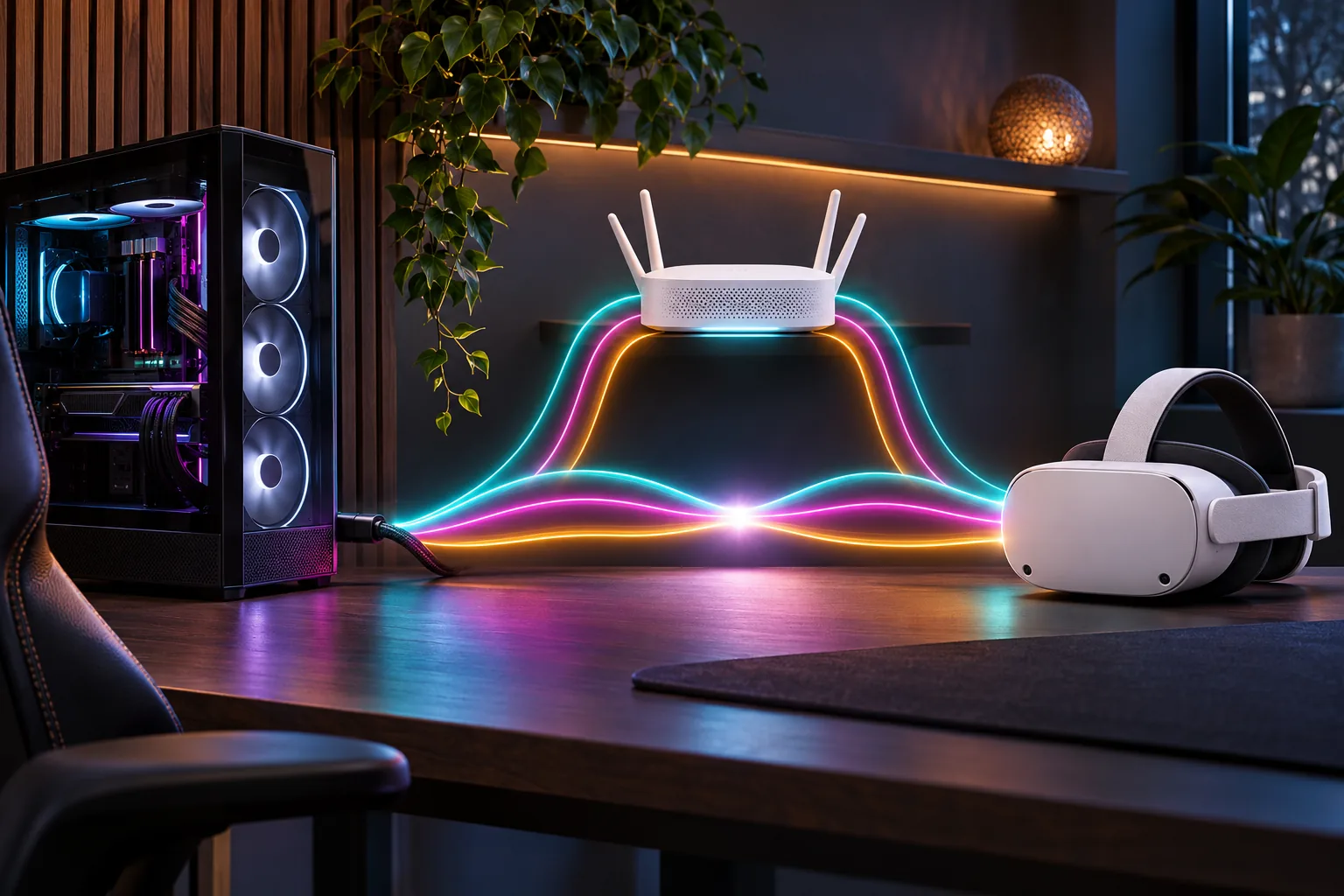
Which Quest 3 PCVR app should you use?
Start with your library and preferred ecosystem. Virtual Desktop is the flexible third-party option, Steam Link is the Steam-native option and Air Link is the route built into Meta Quest Link. Feature sets and app availability change, so use the current store listings and official setup pages before buying anything.
| PCVR route | Best fit | PC-side software | Key caveat |
|---|---|---|---|
| Virtual Desktop | Users who want a separate streaming app and extensive settings | Virtual Desktop Streamer | Separate app purchase; check current store availability |
| Steam Link | Libraries and PCVR sessions centered on Steam | Steam and SteamVR | Steam-focused workflow rather than a general desktop-first hub |
| Air Link | Users who want Meta's built-in Quest Link route | Meta Quest Link PC software | Use Meta's current supported-PC and setup requirements |
| Link Cable | A tethered alternative when Wi-Fi is inconsistent | Meta Quest Link PC software | Requires a compatible cable and changes freedom of movement |
Is Virtual Desktop the best choice for Quest 3?
Virtual Desktop is the best fit when independent configuration matters more than staying inside Meta's default ecosystem. It uses the Virtual Desktop Streamer on the PC and can expose settings and desktop access that a Steam-only workflow does not. It is not automatically faster than Air Link or Steam Link; the local network, PC performance and chosen bitrate still decide stability.
- Use it when you want one third-party app for desktop and VR streaming
- Verify the headset app and Streamer versions before troubleshooting
- Keep the computer wired to the router and both devices on the same network
When is Steam Link better than Virtual Desktop?
Steam Link is the simpler choice when your PCVR games already live in Steam and you want to stay inside Valve's Remote Play workflow. Valve documents Steam Link as local streaming from a computer running Steam, including wireless VR. It is not a reason to buy a new router unless the router's actual local Wi-Fi path is unstable.
Compare it with Virtual Desktop only after testing the same game, bitrate, refresh rate and router location. Different menus do not prove different network latency.
When should you use Quest 3 Air Link?
Use Air Link when you want Meta's built-in Quest Link route and do not need another headset streaming app. Meta's Quest PC setup route covers Link and Air Link, while the Quest 3 product page documents its Wi-Fi 6E hardware. Install the current PC software and follow Meta's supported-device requirements rather than an old setup video.
Air Link is still local PCVR. A fast internet plan cannot compensate for a weak PC-to-router connection or a congested Wi-Fi channel.
How do you set up Quest 3 PCVR with any of these apps?
1. Prepare the Windows PC
Update the GPU driver and install the PC-side app: Virtual Desktop Streamer, Steam with SteamVR, or Meta Quest Link.
2. Connect the PC by Ethernet
Wire the computer to the router. Virtual Desktop and Steam both document a wired PC as the preferred wireless-VR baseline.
3. Put Quest 3 on the same network
Join the intended 5 GHz or 6 GHz SSID. Remove guest-network isolation and avoid routing the headset through a different VLAN.
4. Start with conservative settings
Use a stable bitrate and refresh rate before increasing codec demand, supersampling or wireless transmission settings.
5. Test the real play area
Run a sustained session where you normally play. Watch latency and dropped frames rather than a single speed-test result.
What network setup gives the most stable Quest 3 PCVR?
The critical path is PC to router to headset, not the internet. Keep the PC wired, use a nearby 5 GHz or 6 GHz connection, and give the headset a clear channel without competing video or download traffic. A dedicated SSID or dedicated router can help in a crowded network.
| Official baseline | What it means |
|---|---|
| Virtual Desktop: wired computer and 5 GHz AC or AX router | The PC should use Ethernet; the headset requires a suitable 5 GHz or newer local Wi-Fi path |
| Steam Link: Wi-Fi 5 or newer on 5 GHz with a wired PC-to-router link | Valve's wireless-VR baseline still depends on the real distance and interference in your room |
| Air Link: compatible PC and Meta Quest Link setup | Use the current Meta software, supported operating system and a stable local connection |
For Quest 3 specifically, read the Quest 3 router setup guide and compare 5 GHz versus 6 GHz. If the choice is tethered or wireless rather than app-specific, use the Quest 3 Link Cable comparison.
Why is Air Link, Steam Link or Virtual Desktop laggy?
Start with the local path. Confirm that Quest 3 and the PC see the same network, the PC uses Ethernet, the headset is not on a guest or isolated SSID, and the router is close enough for the chosen band. Then lower the stream bitrate before changing routers.
- Restart the correct PC-side service: Streamer, SteamVR or Meta Quest Link
- Check Windows firewall and any VPN, proxy or virtual adapter on the PC
- Disable network isolation, client isolation and guest-network separation
- Test 5 GHz and 6 GHz separately instead of relying on one combined SSID
- Reduce bitrate or graphics demand to separate network stutter from PC rendering limits
- Test a wired Link Cable session if wireless troubleshooting stalls
A missing PC usually points to discovery, firewall, same-network or client-isolation problems. Sustained stutter usually points to Wi-Fi contention, distance or too ambitious streaming settings.
If Air Link is the route that fails, use the dedicated Quest 3 Air Link not working fixes to work through discovery, greyed-out status, infinite loading, latency and audio.
Can the Minions Kevin run Quest 3 PCVR apps?
Yes. Virtual Desktop, Steam Link and Air Link are software routes, so the router does not need a special brand or gaming mode. The Minions Kevin can provide the local 6 GHz network when its configuration and firmware expose it, while the gaming PC should use Ethernet. Its 2.5GbE WAN is useful for fast internet plans but is not the PC-to-headset streaming path.
Review the Kevin specs, gaming router guide and current price before buying. If range or congestion is the problem, compare Minion Router alternatives rather than assuming a more expensive PCVR app will fix the network.
Where do these recommendations come from?
Meta documents Quest 3 Wi-Fi 6E hardware and the Quest Link and Air Link PC setup route. Virtual Desktop publishes its same-network, wired-computer and 5 GHz router requirements. Steam Link documents wireless VR over Remote Play with a wired PC-to-router connection. These sources describe requirements and feature boundaries, not identical performance in every home.
Key takeaways
- Virtual Desktop is the flexible third-party app route
- Steam Link makes the most sense for a Steam-centered PCVR library
- Air Link keeps the workflow inside Meta Quest Link
- All three depend on a wired gaming PC and stable local Wi-Fi
- Router placement and interference matter more than app branding
- Kevin can support any of the three because PCVR software is not router-specific
Frequently asked questions
Which is best for Quest 3: Virtual Desktop, Steam Link or Air Link?
Virtual Desktop suits users who want a separate third-party app with detailed controls. Steam Link suits a Steam-centered library. Air Link suits users who want Meta's built-in Quest Link route. All three need a wired PC and a stable local Wi-Fi connection.
Is Virtual Desktop better than Air Link?
Virtual Desktop is more independent and exposes its own streaming controls, but it is not automatically faster than Air Link. Choose it for its workflow and features, then compare real latency and dropped frames in the same room and router setup.
Is Steam Link better than Virtual Desktop?
Steam Link is better when your PCVR games and preferred Remote Play workflow stay inside Steam. Virtual Desktop is more suitable when you want a separate third-party streamer with its own settings and desktop workflow. Network quality remains the larger stability factor.
Is Air Link free on Quest 3?
Air Link is part of Meta's Quest Link software route rather than a separate third-party app purchase. The PC must still meet Meta's current hardware and software requirements.
Do you need a router for Quest 3 PCVR?
Wireless PCVR needs a local network between the gaming PC and Quest 3. A suitably configured Wi-Fi router is the standard path. A fast internet plan alone does not provide that local connection.
Does the gaming PC need to be wired?
Yes for the most reliable setup. Virtual Desktop and Steam Link both document a wired PC-to-router baseline for wireless VR. Ethernet removes one wireless hop and leaves the headset as the main Wi-Fi client.
Why is Quest 3 Air Link laggy or not finding the PC?
Check that both devices use the same non-isolated network, the PC is wired, the correct Quest Link software is running, and Windows firewall or a VPN is not blocking discovery. Then move nearer the router, test 5 GHz and 6 GHz separately and reduce bitrate.
One router can support all three PCVR apps
Give Quest 3 a clean 6 GHz path and keep the gaming PC wired to the Minions Kevin.