
Minion Router Manual: App, Setup, Reset and 6 GHz
Use the QR code and label that came with your exact Minions Kevin to reach the companion-app or web setup flow. This guide covers first setup, router admin, 6 GHz, mesh pairing and factory reset without guessing an app-store name or LED code.
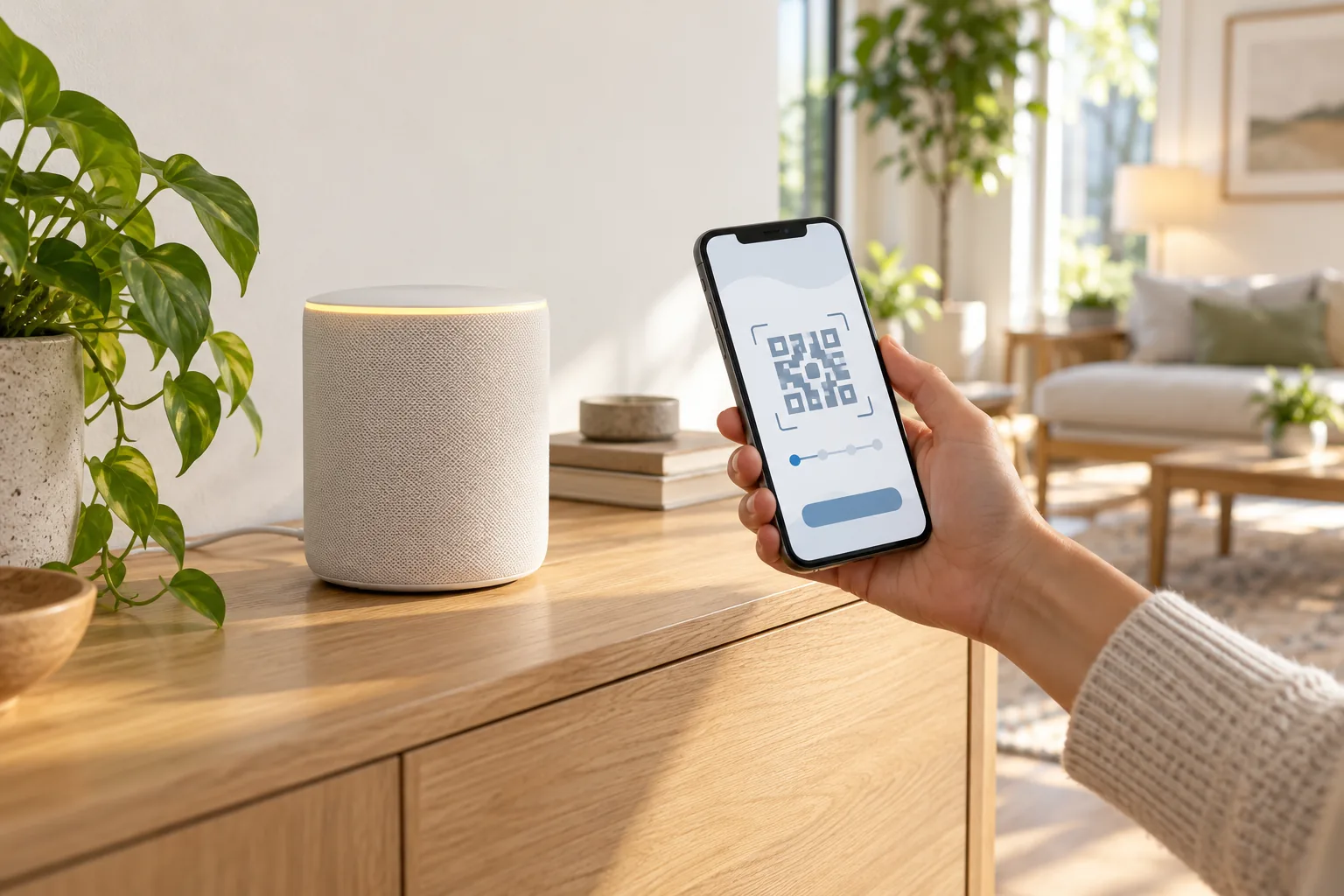
Where do you find the official Minion router manual?
The most reliable instructions are printed on or inside your exact Kevin package: the QR code, setup card, model label and admin address take priority over generic instructions online. The Amazon product listing describes a QR-code setup flow, while this site's Kevin setup guide documents the same core sequence of WAN, power, Wi-Fi and account details.
- QR code or setup card: usually opens the current app download or web wizard
- Router label: shows the temporary Wi-Fi name and password plus the local admin address
- Packaging: identifies the model, kit contents, power adapter and Ethernet cable
- Seller listing: provides the latest app, reset or firmware details for that batch
Do not install an app solely because its store listing uses a similar Minions image. The site is a Kevin product guide, not an app directory, and we have not verified one universal app-store name across every regional package.
Does the Minions router use an app or a web page?
The setup flow can use either a companion mobile app or a browser-based wizard, depending on the firmware and package. The QR code is the handoff: let it open the flow intended for your unit, then confirm you are connected to the router's own temporary Wi-Fi network before entering a Wi-Fi password.
- If the QR code offers an app, install only the linked listing and check the publisher before continuing
- If it opens a browser wizard, use the address shown by the QR code or label rather than guessing a local IP
- If neither route loads, connect to the temporary network first and retry the QR code
- If the setup page is unreachable, use the troubleshooting guide
How do you set up the Minion router from the box?
1. Connect the WAN port
Run Ethernet from the modem or ISP gateway's LAN port to the Kevin's 2.5GbE WAN port. Do not use a LAN port for the internet source.
2. Power on and wait
Connect the supplied adapter and allow the router time to boot. Join the temporary Wi-Fi network printed on the label using the password on the same label.
3. Open the QR setup flow
Scan the package QR code or follow the setup card. If it points to a web wizard, keep the phone connected to the router network until the internet check completes.
4. Name the network and set WPA3
Choose a new SSID and a strong Wi-Fi password. Use WPA3 where offered, with WPA2 compatibility only when an older device requires it.
5. Change the admin password
Set a unique router administrator password. Keep it separate from the Wi-Fi password so guests can join the network without being able to change router settings.
6. Check firmware and 6 GHz
Install any firmware update offered by the setup flow, enable 6 GHz and create a separate 6 GHz SSID if the interface allows it.
Kevin's first connection and physical setup are covered in more detail on the six-step setup page. Use this manual page when you need the app/web route or a settings reference rather than the initial cable walkthrough.
How do you open the Minion router admin page?
Open the local address printed on the router label while connected to the router's network. Sign in with the administrator password you created, or with the factory credential on the label if the router has not been configured.
- Use the address on the label; do not assume that every Minions firmware uses the same local IP
- Administrator login is separate from the Wi-Fi guest password
- Change any default administrator password immediately
- If the page does not load, disconnect cellular data temporarily and confirm the phone is still on the router's Wi-Fi
The app is convenient for setup and mesh pairing, but the browser admin can be useful when a phone is already connected or when you need to inspect the local address directly. For login recovery and a settings checklist, use the Minion router admin guide. Use the guest-network guide for extra SSIDs and IoT isolation. Changing WAN routing around an ISP gateway is covered in the bridge-mode guide; adding Wi-Fi over an Ethernet uplink is covered in the access-point guide.
How do you enable and name the 6 GHz network?
Open the wireless or Wi-Fi settings in the setup app or web admin, confirm the 6 GHz radio is enabled, and give it a distinct SSID when the interface allows it. A separate name keeps Wi-Fi 6E devices, including Quest 3 and newer laptops, from being mixed unpredictably with older clients.
- Only a Wi-Fi 6E device can see the 6 GHz network
- Use WPA3 for the 6 GHz SSID when offered
- Keep the router in the same room for initial testing and PCVR
- Expect less wall penetration than 5 GHz; use the mesh guide when coverage is the problem
How do you pair a 2-pack or 3-pack?
1. Set up the main router first
Finish internet, Wi-Fi and admin-password setup on the primary Kevin before adding another node.
2. Power the node near the main router
Keep the extra unit within a few metres during pairing and connect it to power only unless the app requests Ethernet.
3. Choose Add node in the app
Follow the app or web-admin pairing prompt and wait for the node to appear as connected before moving it.
4. Move and verify coverage
Place the node about one room away from the main router, avoid cabinets, and verify that the status remains healthy after the move.
Read the Kevin mesh guide for 2-pack and 3-pack coverage, placement and 6 GHz backhaul details.
How do you factory reset the Minion router?
Factory reset is the last step after cabling, modem and 6 GHz compatibility have been checked. It erases your Wi-Fi name, password and router settings, so be ready to configure the Kevin again.
- Locate the reset control shown on your exact router label or setup card
- Power the router on and hold the recessed reset control as instructed for your firmware
- Release only when the documented status change occurs
- Reconnect to the temporary network on the label and run the QR or web setup flow again
Reset timing and light behaviour can differ by firmware. If your unit does not document the control, contact the seller before repeatedly pressing unidentified buttons. For diagnosis before a reset, use the Minion router troubleshooting page.
Which settings should you change after setup?
- Set a unique WPA3 Wi-Fi password
- Change the administrator password
- Keep 6 GHz enabled and test it with a Wi-Fi 6E device
- Install firmware offered through the official setup flow
- Reuse your old SSID only if you want clients to reconnect automatically
- Record your mesh node locations and WAN cable path for easier troubleshooting
Key takeaways
- Use the QR code and label from your exact Kevin package
- The setup route can be an app or local web wizard
- Connect the internet source to WAN, not LAN
- Change both Wi-Fi and admin passwords
- Pair mesh nodes near the main router before moving them
- Factory reset only after basic cabling and compatibility checks
For the product's hardware details, see the Kevin spec sheet. For no-internet, missing 6 GHz or mesh failures, continue to Minion router troubleshooting.
Frequently asked questions
Is there a downloadable PDF manual for the Minion router?
A single universal PDF has not been verified across every package and region. Use the QR code, setup card and label included with your exact Kevin, plus the latest seller listing for that batch.
Does the Minions router need an app?
The setup flow may use a companion app or a browser wizard. The QR code determines the intended route for your unit. The app is convenient, but the label's local admin address can also reach router settings.
What is the default router admin address?
Use the address printed on your router label. Do not guess a generic private IP because the address can differ by firmware. Join the router's network before opening that address.
How do I reset the Minion router?
Locate the documented reset control, hold it according to your model's instructions, and wait for the status-light change before releasing. Reset erases your network settings, so reconfigure the router afterward.
How do I pair the second router in a 2-pack?
Set up the main Kevin first, power the second unit near it, use the Add node action in the app or web admin, then move the paired node to its final room and verify the signal.
Where can I find the Wi-Fi password?
The factory temporary Wi-Fi password is on the router label and may also be on the setup card. After setup, use the new password you created. The admin password is separate.
Ready to set up the Kevin?
The Minions WiFi 6E Router starts at $102.99 with free 3–5 day shipping and 30-day returns.