
How Do You Use the Minion Router as an Access Point?
The Minions Kevin can add Wi-Fi 6E coverage to an existing wired network when its exact firmware exposes bridge or access-point mode. This guide separates that setup from ISP bridge mode, Wi-Fi repeating and compatible Davolink mesh, then shows the safe setup and placement order.
What does Access Point mode do on the Minion Router?
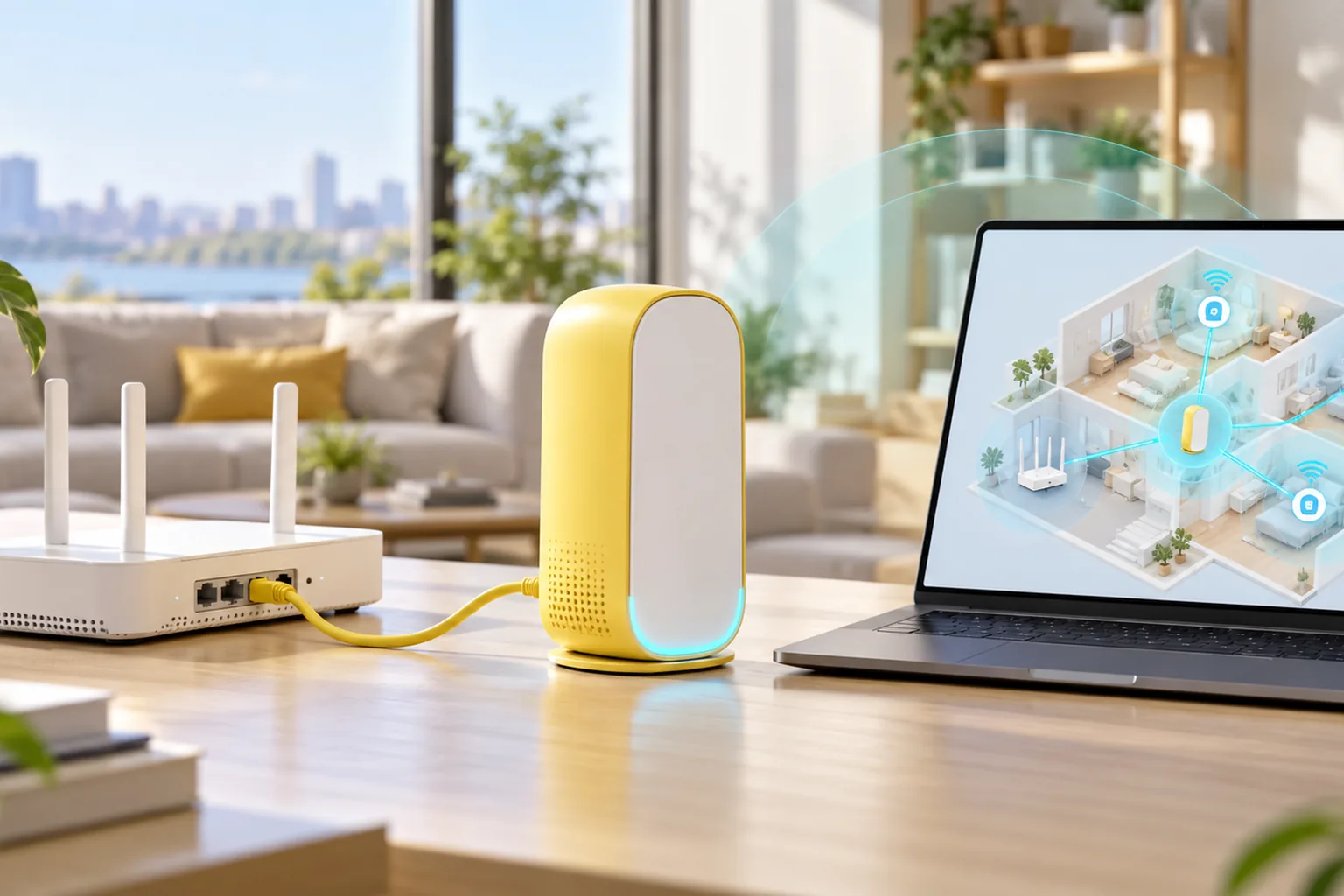
Access Point mode turns Kevin into a wireless and Ethernet extension of an existing network. The upstream router keeps the internet connection, firewall, NAT and DHCP server; Kevin supplies its 2.4, 5 and 6 GHz radios plus its Ethernet port without creating a second routed network.
That differs from leaving Kevin in normal router mode behind another router. Two routers can create double NAT, competing subnets or confusing Wi-Fi roaming. A wired access point removes the second routing layer while preserving a strong Ethernet backhaul.
- The existing gateway remains the only DHCP server
- Kevin must not create a second private network when the selected mode disables routing
- Clients receive addresses from the main network and can roam between access points
- The Ethernet uplink carries traffic without consuming shared Wi-Fi airtime
Does the Minions Kevin support Access Point mode?
The Amazon product listing describes Kevin as a router that can be configured as a bridge to add Wi-Fi 6E access-point coverage to an existing wired network. It also lists Router, Access Point, Wi-Fi Extender and compatible Mesh flexibility. That is a manufacturer-level feature statement, not a guarantee that every regional firmware revision shows the same menu.
- Open the Kevin admin interface and check the operating or network mode menu
- Look specifically for Bridge or Access Point mode before changing cabling
- Record the current WAN, LAN, DHCP and Wi-Fi settings so you can restore the working setup
- If the option is absent, keep Kevin in router mode or use a compatible mesh node instead of guessing another model's instructions
The Minion router extender guide covers wireless repeater mode. The ISP router and bridge-mode guide covers the different case where the ISP gateway is placed into bridge mode and Kevin remains the main router.
How should the Minion Router access point be wired?
The upstream Ethernet cable must come from a LAN port on the main router and reach the port specified by Kevin's Bridge or Access Point setup screen. The Amazon listing says the 2.5GbE WAN can serve as a high-speed network uplink when Kevin is configured as a bridge, but the exact firmware prompt overrides a generic diagram.
1. Confirm the main network
Test the existing router with a wired client and note its LAN subnet, default gateway and DHCP range before adding Kevin.
2. Update and enter Bridge / AP mode
Use the app or browser admin to install the current firmware, then select the supported operating mode. Do not change several unrelated radio settings at once.
3. Connect the documented uplink
Run Ethernet from a main-router LAN port to the port named in Kevin's setup screen. Use a cable and adapter that support the negotiated speed you need.
4. Apply the shown DHCP instructions
If the interface says the DHCP server is disabled automatically, verify it. If it asks you to disable DHCP manually, do that and save the change before moving Kevin.
5. Test from the final location
Connect a laptop and a Wi-Fi 6E phone or headset, confirm they receive addresses from the main network and test roaming and internet access.
Access point, extender, repeater, mesh and ISP bridge: what is different?
| Mode | Uplink | What remains in charge of routing? |
|---|---|---|
| Access point / bridge AP | Ethernet from the existing router | The existing router keeps DHCP, NAT and internet routing |
| Wi-Fi extender or repeater | An existing Wi-Fi network | The existing router routes; the repeated link shares wireless airtime |
| Compatible Davolink mesh | Dedicated wireless backhaul or supported kit wiring | The mesh manages nodes and roaming together |
| ISP gateway bridge mode | The ISP device stops routing | Kevin becomes the main router |
Choose access point mode when a cable is practical. Choose extender or repeater mode when there is no cable and the firmware supports an existing upstream Wi-Fi network. Choose compatible Davolink mesh when you want coordinated nodes and roaming across the same router family.
Do not put both the existing router and Kevin into DHCP mode on the same LAN. Likewise, do not confuse ISP bridge mode with Kevin access-point mode: they move routing responsibility in opposite directions.
How do you avoid double NAT and duplicate DHCP?
There should be one DHCP server and one routing boundary for a normal home network. In access-point mode, the main router keeps that job. Kevin's DHCP server must be disabled when the selected firmware does not disable it automatically.
- Keep the main router's LAN address as the default gateway for clients
- Use an address outside the main DHCP pool only if the firmware requires a fixed management address
- Do not connect two LAN ports from unmanaged devices in a way that creates a switching loop
- Use the same SSID and security settings only when roaming is stable; a distinct test SSID is safer during setup
- Reboot clients that retained a lease from Kevin's former router network
If devices obtain an address but have no internet, inspect the uplink port, main-router DHCP state and Kevin's operating mode before resetting anything. The Minion router troubleshooting guide has the broader no-internet sequence.
Where should you place a wired Minion Router access point?
Place Kevin near the devices that need a stronger 6 GHz signal while keeping the Ethernet run practical. Unlike a wireless repeater, the access point does not need to sit halfway toward the main router, but it still needs sensible radio placement.
- Use an open shelf or desk rather than a metal cabinet, cupboard or floor
- Keep the unit away from large mirrors, metal appliances and the back of a television
- Place 6 GHz devices in the same room or an adjacent room because 6 GHz penetrates walls less effectively
- Let 2.4 and 5 GHz cover farther clients rather than forcing every device onto 6 GHz
- Test the exact headset or laptop that needs the improvement, not only a speed-test phone
Is a wired access point good for gaming and Quest 3?
A wired access point is the strongest way to add nearby 6 GHz coverage for Quest 3 or another Wi-Fi 6E headset. Keep the gaming PC wired to the same network and put Kevin in the play space. The Ethernet backhaul avoids the extra wireless hop that a repeater introduces.
- Use Ethernet between the main network and Kevin whenever the run is possible
- Wire the PC to the access point or main switch rather than repeating the PC connection
- Use a separate 6 GHz SSID during testing so the headset joins the intended radio
- Judge sustained latency and jitter after ten to twenty minutes, not only a peak speed test
- Keep the headset near the access point and reduce obstructions between them
For the complete headset workflow, use the Quest 3 router guide. For multi-unit coverage planning, compare the Minions mesh guide.
When should you use mesh or extender mode instead?
| Situation | Best mode | Reason |
|---|---|---|
| Ethernet can reach the weak area | Access point | Stable backhaul and no repeated wireless hop |
| No cable and Kevin must reuse an existing Wi-Fi network | Extender / repeater | Adds coverage, with possible throughput and latency trade-offs |
| Two or more compatible Davolink Minions units | Davolink mesh | Coordinated nodes and cleaner roaming |
| Kevin is the primary router behind a modem | Normal router mode | Kevin should own routing, NAT and DHCP |
| The firmware has no access-point control | Do not force AP mode | A guessed LAN-to-LAN setup can create DHCP or loop problems |
Key takeaways
- Kevin supports access-point use when its exact firmware exposes Bridge or Access Point mode
- A wired access point keeps the existing router responsible for DHCP and routing
- Confirm the uplink port and DHCP behavior in Kevin's own interface
- Access point mode is different from wireless repeater mode and ISP bridge mode
- Use Ethernet whenever possible for gaming and Quest 3 coverage
Feature wording comes from the Minions Kevin product listing. Port and radio details are also documented in the RTINGS Kevin review. This guide does not invent a universal default IP, administrator password or fixed firmware layout.
Frequently asked questions
Does the Minion Router have access point mode?
The Minions Kevin product listing says it can be configured as a bridge to provide Wi-Fi 6E access-point coverage. Check your exact firmware for Bridge or Access Point mode because regional menu labels can differ.
Which port should I use for Minion Router access-point mode?
Use the port named by Kevin's Bridge or Access Point setup screen. The product listing says the 2.5GbE WAN can serve as a high-speed bridge uplink, but firmware instructions should control the cable path.
Should DHCP be on or off in access-point mode?
The main router should keep the only DHCP server used by clients. Kevin's DHCP server must be off when the selected access-point mode does not disable it automatically.
Is access point mode better than extender mode?
Yes when an Ethernet cable is practical. The access point uses a stable wired backhaul, while an extender receives and retransmits Wi-Fi, which can add latency and reduce throughput.
Can I use Kevin as an access point with another router brand?
Yes when Kevin's firmware supports Bridge or Access Point mode. The other router supplies routing and DHCP; Kevin supplies Wi-Fi and its local Ethernet port. Compatible Davolink mesh is only for same-family nodes.
Is a wired access point good for Quest 3 PCVR?
It is the preferred coverage extension when the headset and PC need a nearby 6 GHz network. Keep the PC wired and test sustained latency and jitter with the headset near the access point.
Add a nearby 6 GHz access point
Minions Kevin starts at $102.99 with a 2.5GbE WAN, gigabit LAN and Wi-Fi 6E access-point flexibility.